Student guide
Open a course
Launch JupyterHub through your LMS when the course uses LTI. Open BYTE Grader → My Courses, choose the course, and select an assignment.
Only active courses and visible assignments are shown. Due dates and solution availability are controlled by the instructor.
Start an assignment
Select Start assignment. BitsyGrader downloads the student notebooks and assets into:
The local assignment state changes from Not started to In progress. Work in the fetched notebooks and keep their original filenames and cell IDs; BitsyGrader uses both when matching your submission to the assignment.
Do not edit read-only cells or create a replacement notebook from scratch. Unrecognized cells are ignored during submission.
Submit
Save every notebook, then select Submit assignment. The Jupyter Server extension uploads all .ipynb files below the assignment directory.
After submission:
- the state becomes Submitted while grading is pending;
- successful grading changes it to Graded or Completed;
- the score shown is the sum of per-cell grades and extra credit;
- an LMS-backed assignment can send the result back to the LMS automatically.
If resubmission is disabled, the first submission is final. If it is enabled, the previous active submission is archived when you submit again.
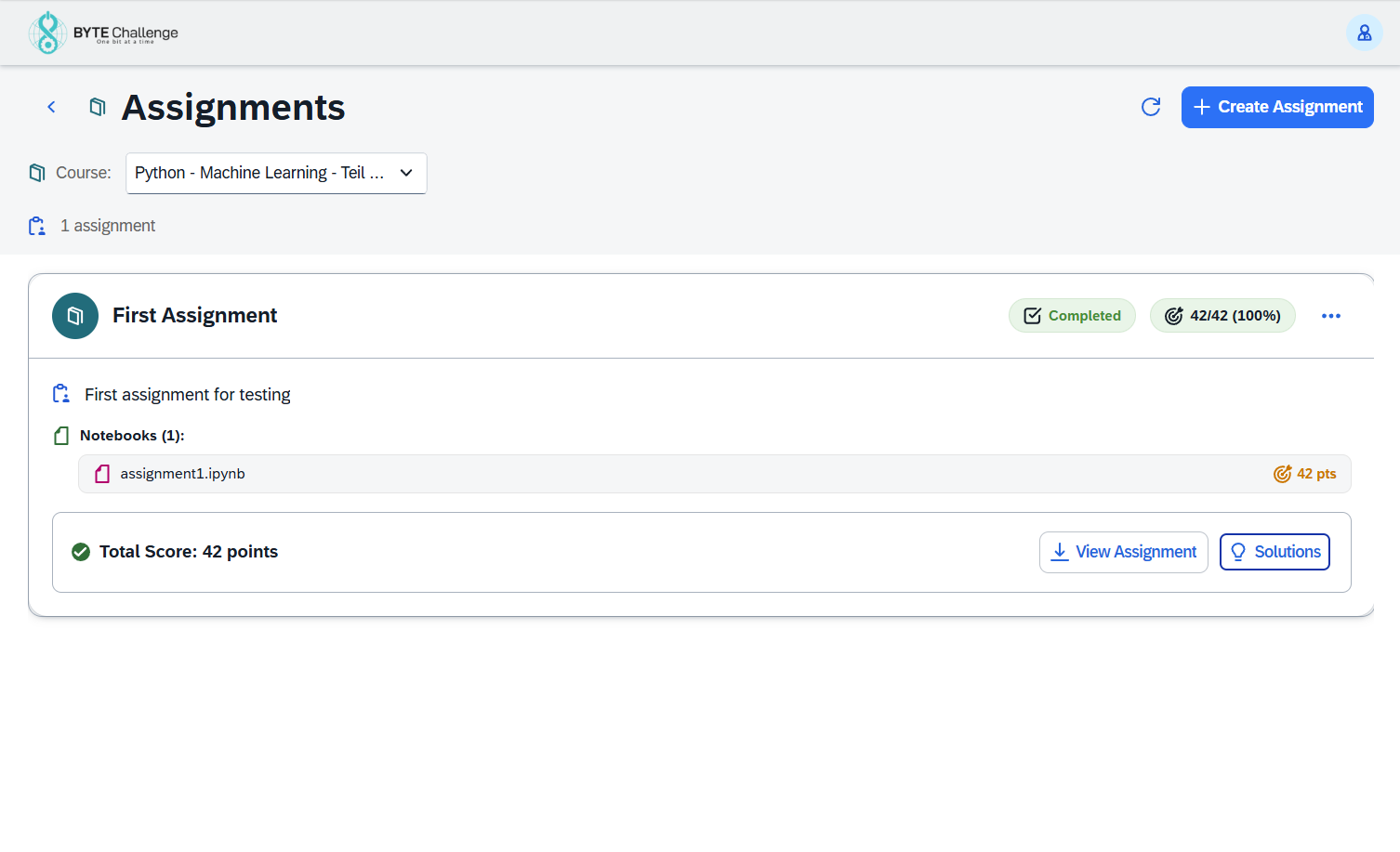
Fetch solutions
When the assignment policy allows it, select Fetch solutions. Solutions are written to:
The solution files are made read-only. Depending on instructor settings, solutions may be available always, after the due date, after your first submission, after completion, or never.
If an operation fails, record the request ID shown in the error dialog. It lets an administrator correlate the browser error with service logs and tracing data.